 Keet Support
Setup
To start using Keet, no email or phone number is required. Install the app, choose a display name, and you're ready to chat.
How can I create a profile on Keet?
Setting up Keet takes one screen: choose a display name, optionally pick a username, and agree to the terms. Keet creates your profile and your recovery phrase for you.
Download & Open Keet
Download and install Keet using the installation guide.
When you open Keet for the first time, select 'Get started'.
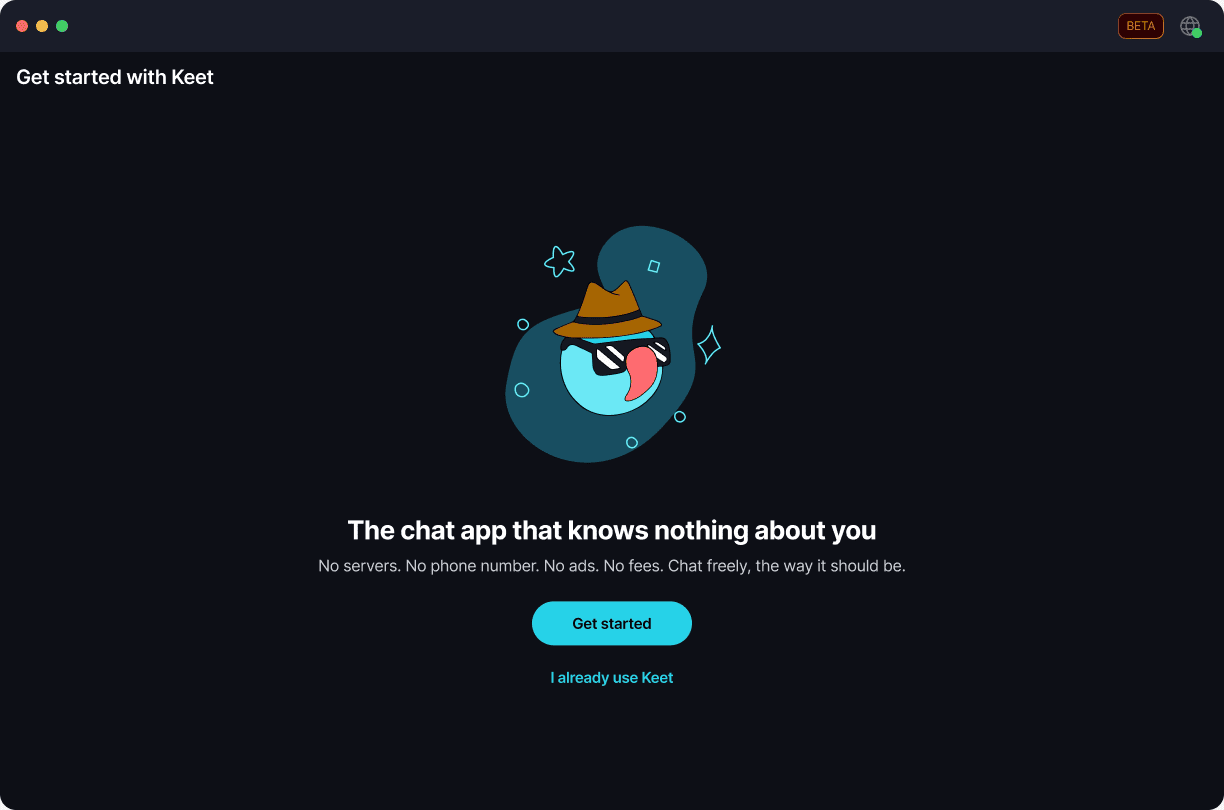
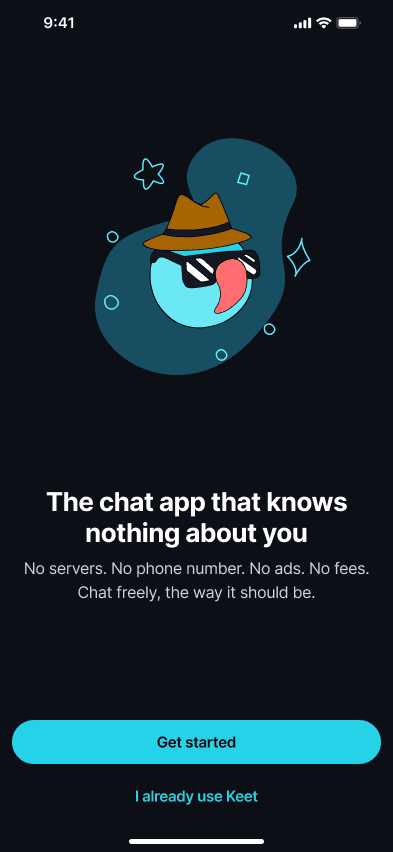
Already have a Keet profile? Select 'I already use Keet' instead. You can then link this device to your existing profile, or recover your profile with your recovery phrase. See Link Devices and Recover a Profile.
Set up your profile
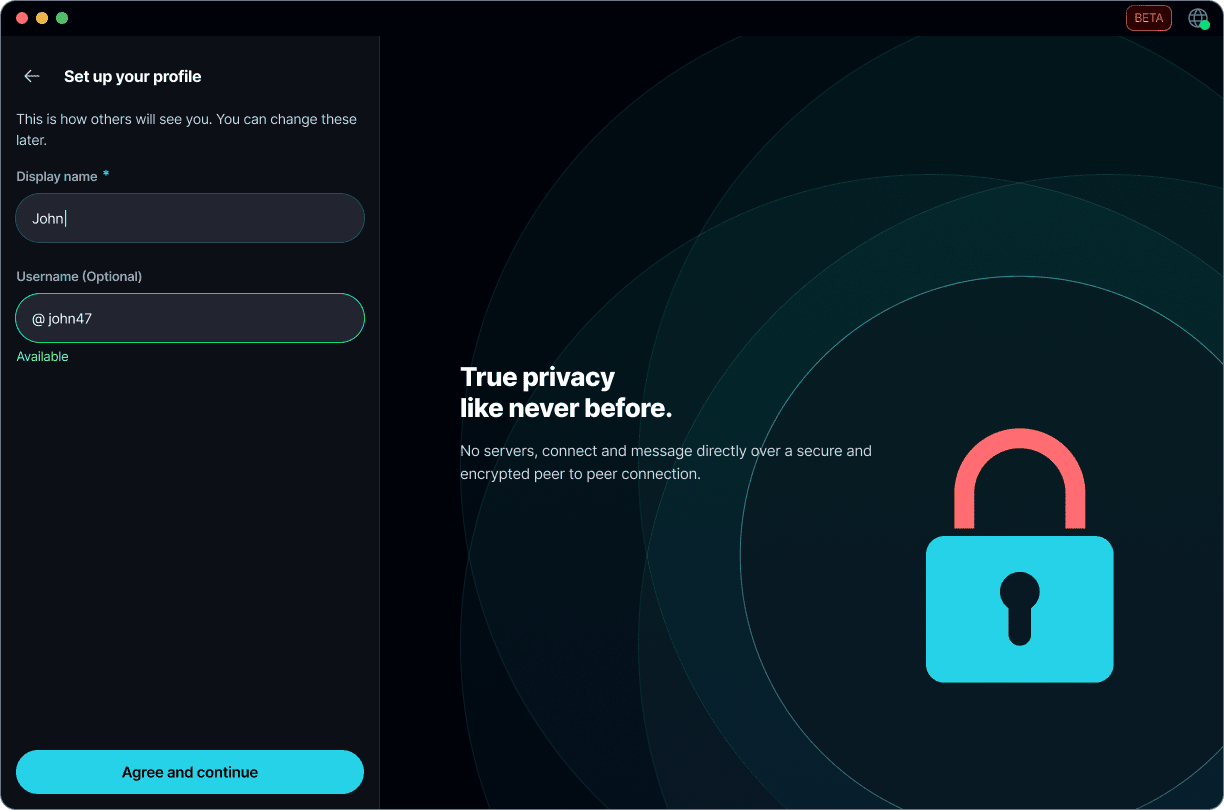
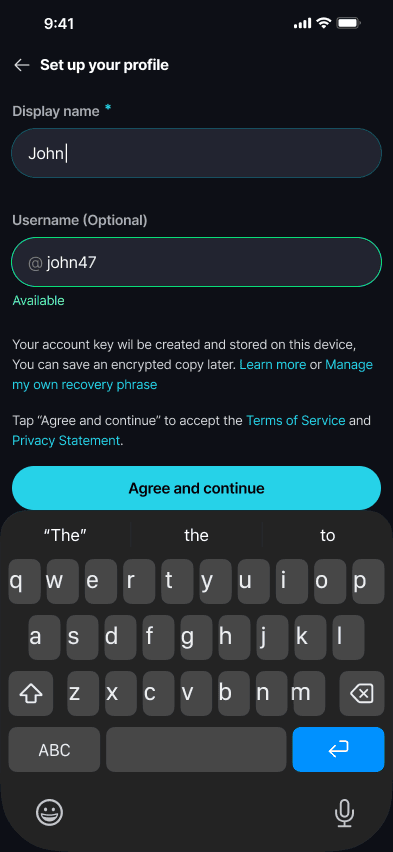
On 'Set up your profile', fill in:
- Display name (required). This is the name other people see in groups and private chats. You can change it at any time.
- Username (optional, but recommended). Your username is how others can find you on Keet. You can skip it now and add one later.
Choosing a username
When you select the username field, Keet suggests a few usernames based on your display name, such as @alice_227. Select one to use it, or select 'More' for new suggestions. You can also type your own.
As you type, Keet shows what a username needs:
- At least 3 characters
- At least one letter
- At least one number
- Letters, numbers & underscores only
Then it shows 'Checking availability...' and 'Available' when the username is free. If someone already has it, pick another suggestion or try a different name. You can't continue with a username that's invalid or taken, so clear the field if you'd rather skip it.
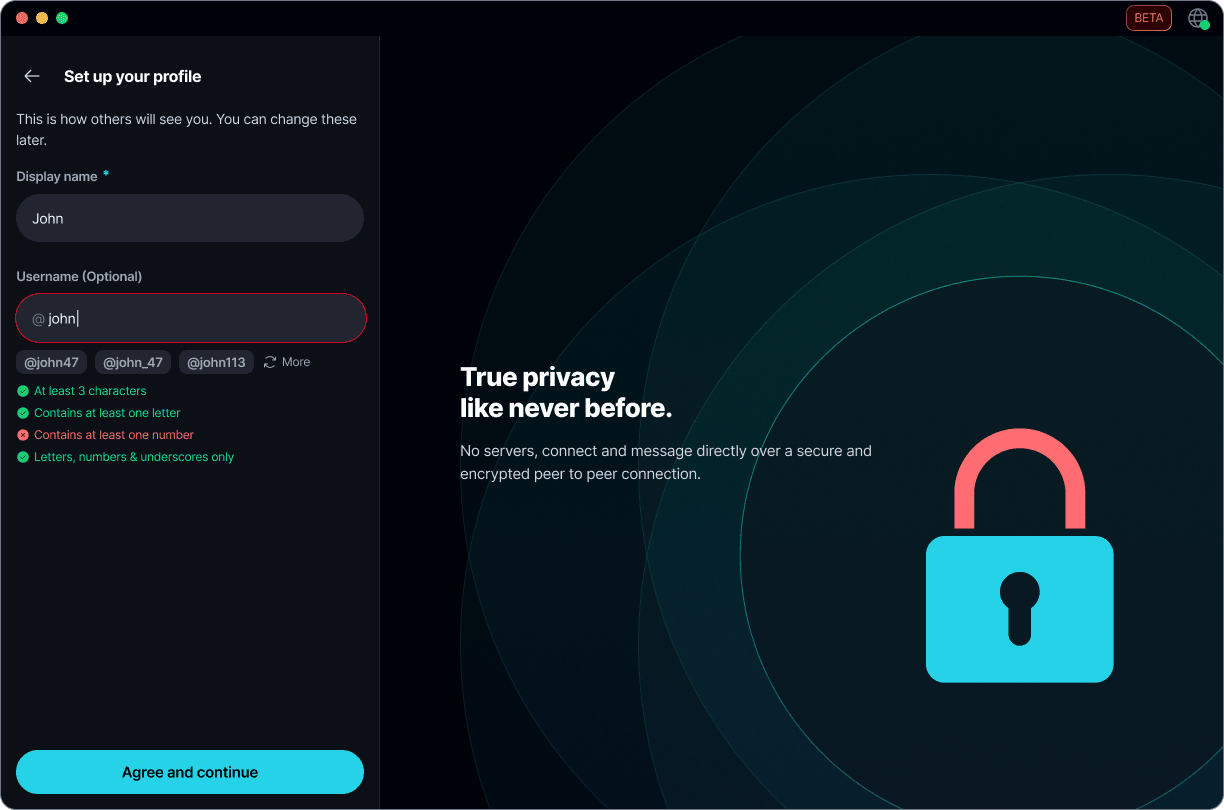
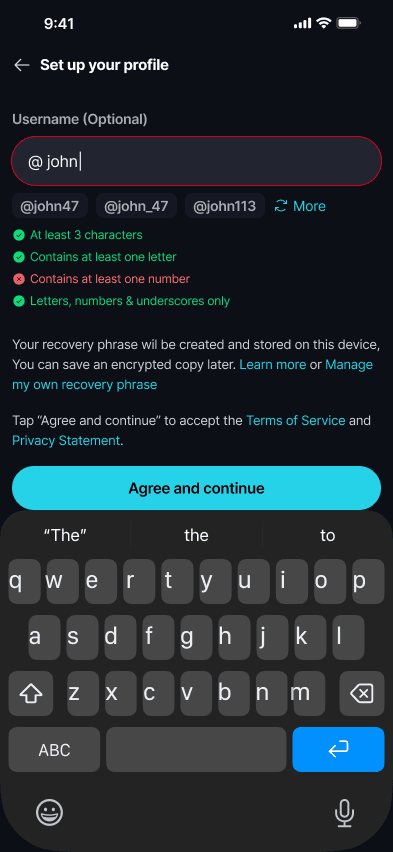
Suggestions aren't checked in advance. If a suggested username is already taken, Keet tells you when you select it, and you can pick another.
If you prefer to remain undiscoverable by a username, skip it. Just remember: other users won't be able to find you unless you share your profile QR code with them 🔎
Agree and continue
Read the Terms of Service and Privacy Statement using the links on the screen, then select 'Agree and continue'. The button only works once you've entered a display name and any username you typed is valid.
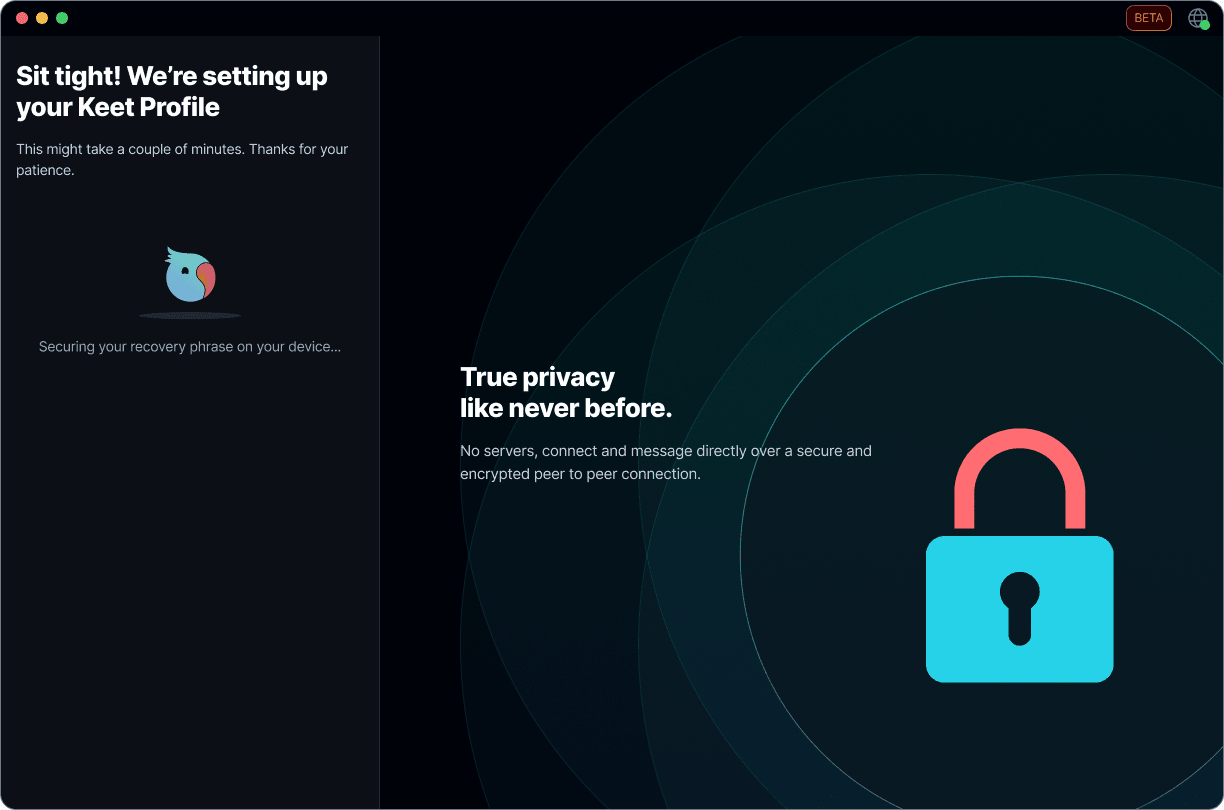
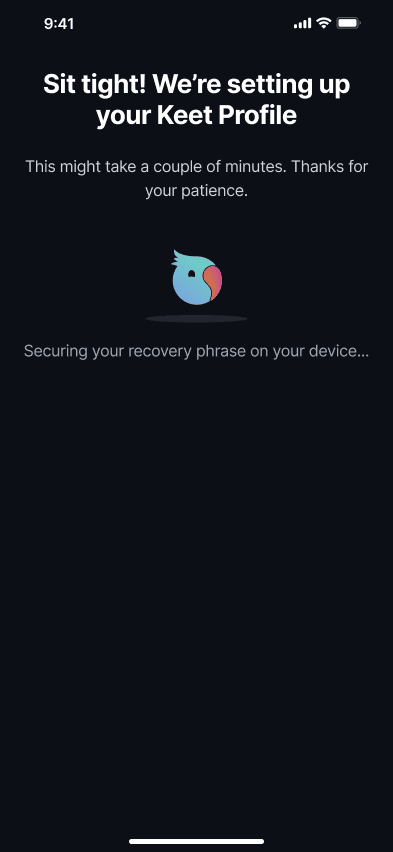
Keet shows 'Sit tight! We're setting up your Keet Profile' while it creates your profile and secures your recovery phrase on your device. This can take a couple of minutes.
Terms of Service and Privacy Statement
The 'Terms of Service' and 'Privacy Statement' links on 'Set up your profile' open the full text. Select 'Done' to go back to your profile setup. Anything you already entered stays there.
Welcome to Keet!
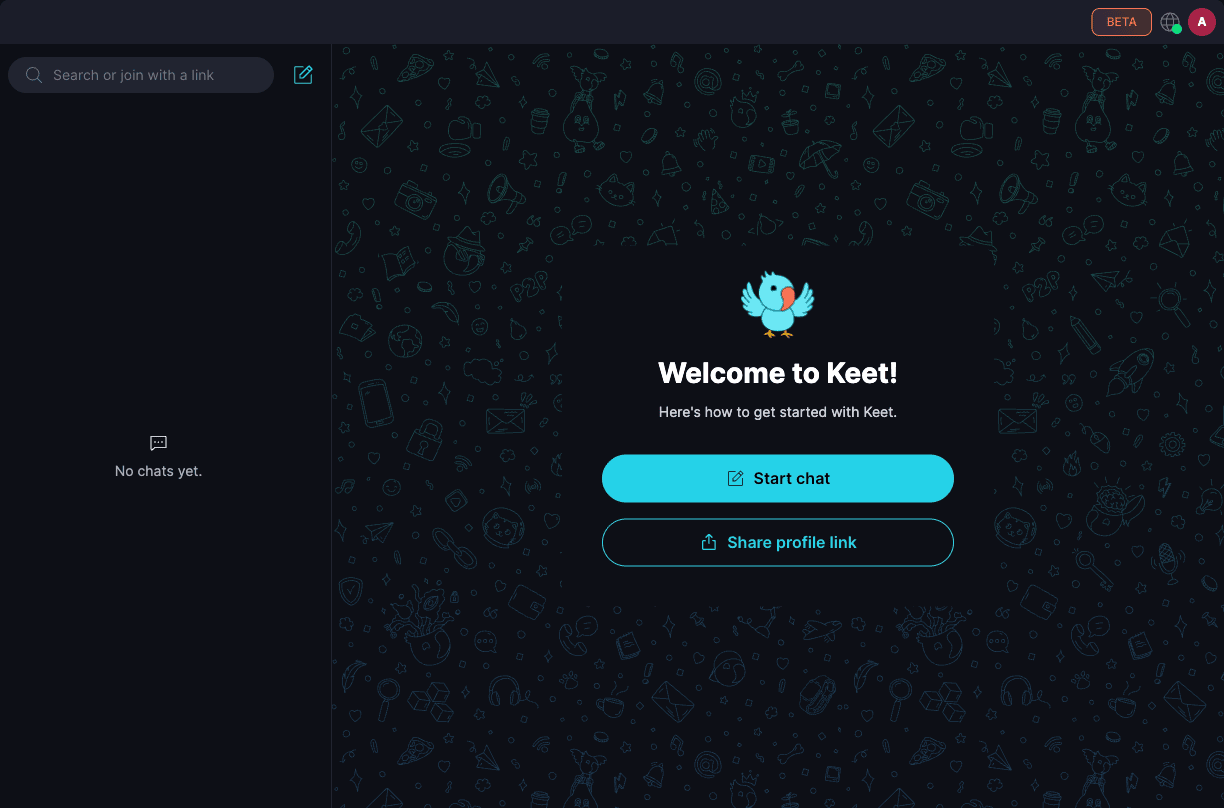
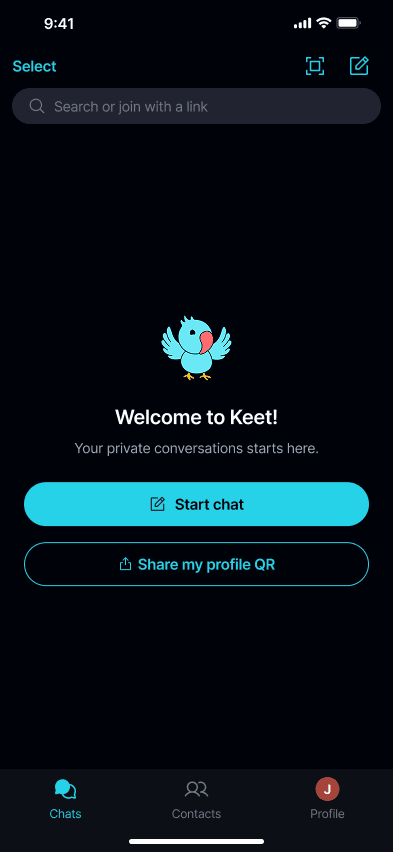
Once your profile is ready, you see 'Welcome to Keet!' with two ways to get going:
- 'Start chat' opens the Start chat menu, where you can find people, create a group, or join a community.
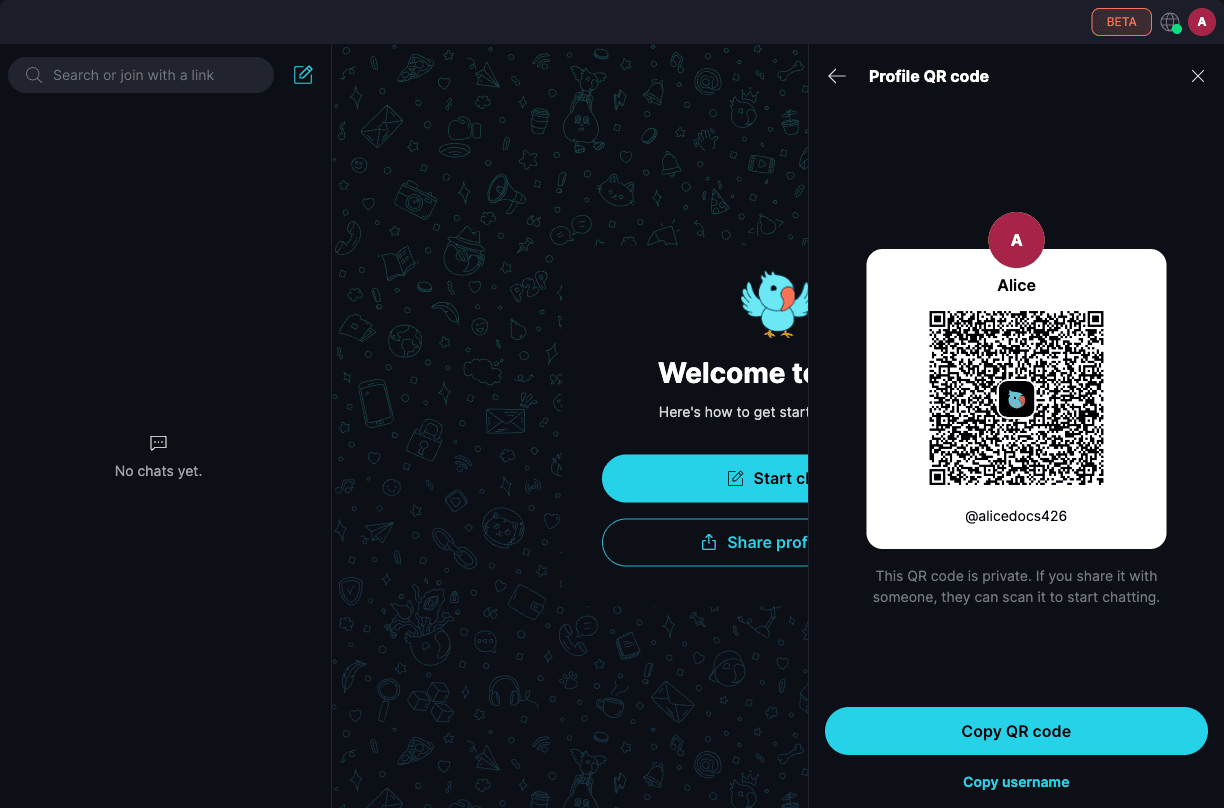
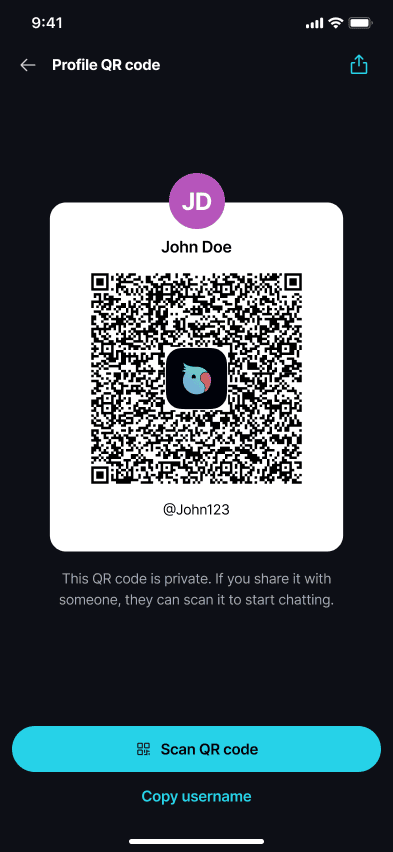
- 'Share profile link' (desktop) or 'Share my profile QR' (mobile) shows your profile QR code, so others can scan it and start chatting with you.
Share your profile
Your profile QR code shows your name and username. On desktop, select 'Copy QR code' to copy the QR image or 'Copy username' to copy your username. Keet confirms with 'QR code copied.' or 'Username copied.' On mobile, use the share button to send the QR code, or 'Copy username'.
When someone scans your QR code or searches for your username, they can send you a DM request.
That's it! 🖍️ You're ready to go! You can add a profile picture at any time from your profile.
Your recovery phrase
A recovery phrase is a 24-word code that works as a password. If you lose your device or reinstall the app, you can use it to restore your profile and messages.
By default, Keet creates your recovery phrase and stores it securely on your device while it sets up your profile. You can view it later and back up your profile to an encrypted file from your profile's recovery phrase settings.
Your recovery phrase is the only way to recover your account or move it to a new device. 🔏 Learn more in Recover a Profile.
Manage my own recovery phrase
If you'd rather write the phrase down yourself, select 'Manage my own recovery phrase' on 'Set up your profile', then 'Continue' on 'Manual setup'. After you choose your display name and agree to the terms, Keet shows 'Your recovery phrase'. Write down all 24 words in order, tick the box to confirm you've stored them safely, and select 'Verify phrase' to check them.
In manual setup, Keet doesn't keep a copy of your recovery phrase. Copy or write it down immediately and store it somewhere safe. 🔑
I updated Keet. Do I need to set up my profile again?
No. If you already have a profile, updating Keet doesn't take you through setup again. Your profile, chats, and recovery phrase stay as they are.