 Keet Support
Invite Peers 🙋
Create one invite link for your group, share it as a link or QR code, and revoke it whenever you want to stop new people from joining.
Private groups are not searchable or publicly listed in Keet, which helps keep them private and secure. (Public groups and broadcast feeds can be found via in-app search — see Joining Groups.)
To bring people in, share the group's invite link. Each group has one invite link at a time:
- Anyone can use it, as many times as needed, and it doesn't expire.
- People who join with it become Peers. You can change their role after they join.
- It keeps working until an Admin or Moderator revokes it.
Keet doesn't create a link automatically. An Admin or Moderator creates it the first time it's needed.
Create the invite link
Admins and Moderators can create the link in two places:
- Right after you create a group: select 'Create & copy invite link' in the chat. See Create a Group.
- From the group's info: open the group, select the group name at the top to open 'Group info', and under 'Share link' select 'Create invite link'.
On desktop, you can also click the three dots '[...]' next to 'Share link' and choose 'Create invite'.
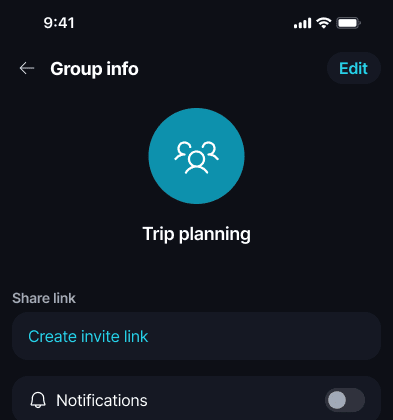
Keet creates the link and shows it under 'Share link'. When you use 'Create & copy invite link', Keet also copies it and shows 'Invite link copied to clipboard'.
If the group already has a link, you see that link instead. Keet never creates a second link while one is active.
Share the invite link
Open 'Group info' again whenever you need the link. It shows the group's current link under 'Share link'.
Click the link to copy it, or click the three dots '[...]' next to it:
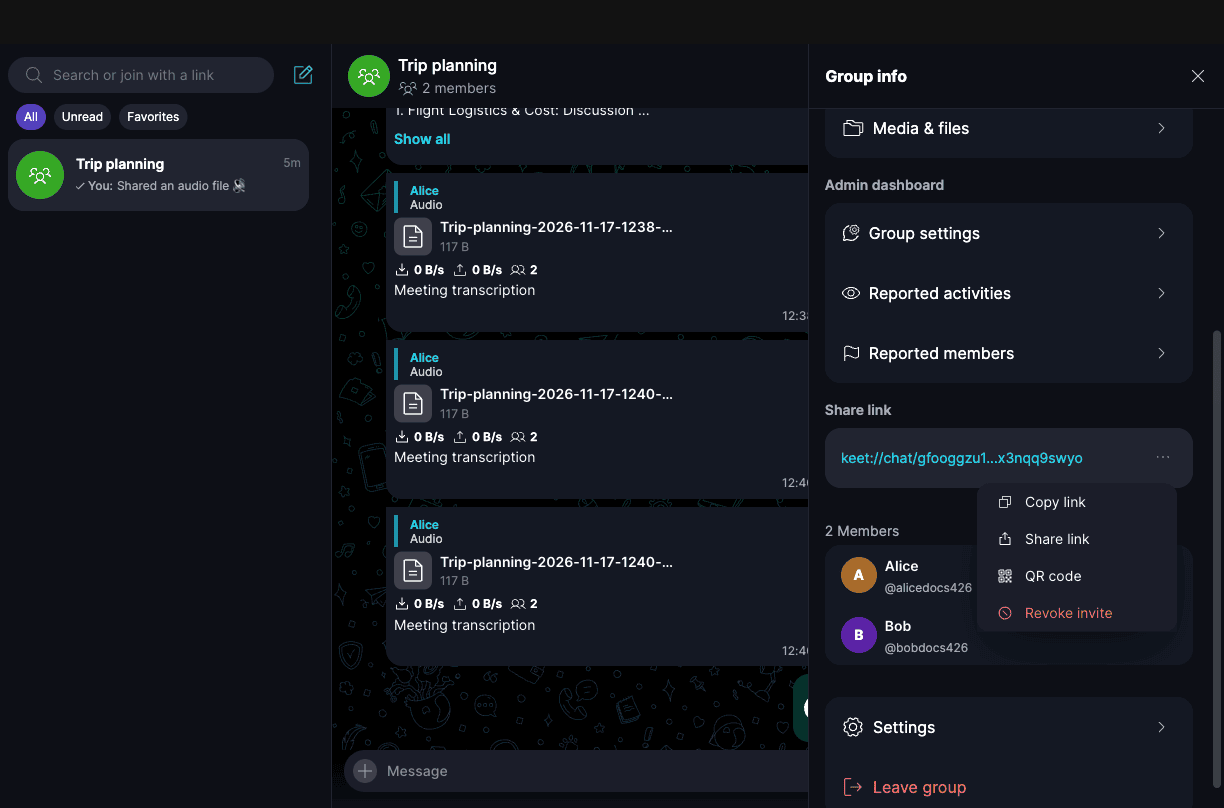
- 'Copy link' copies the link.
- 'Share link' opens 'Share group link', where you choose the kind of link to share, copy it, or share it to Threads or X.
- 'QR code' shows the group's QR code, which you can copy or share.
- 'Revoke invite' turns the link off. Only Admins and Moderators see it.
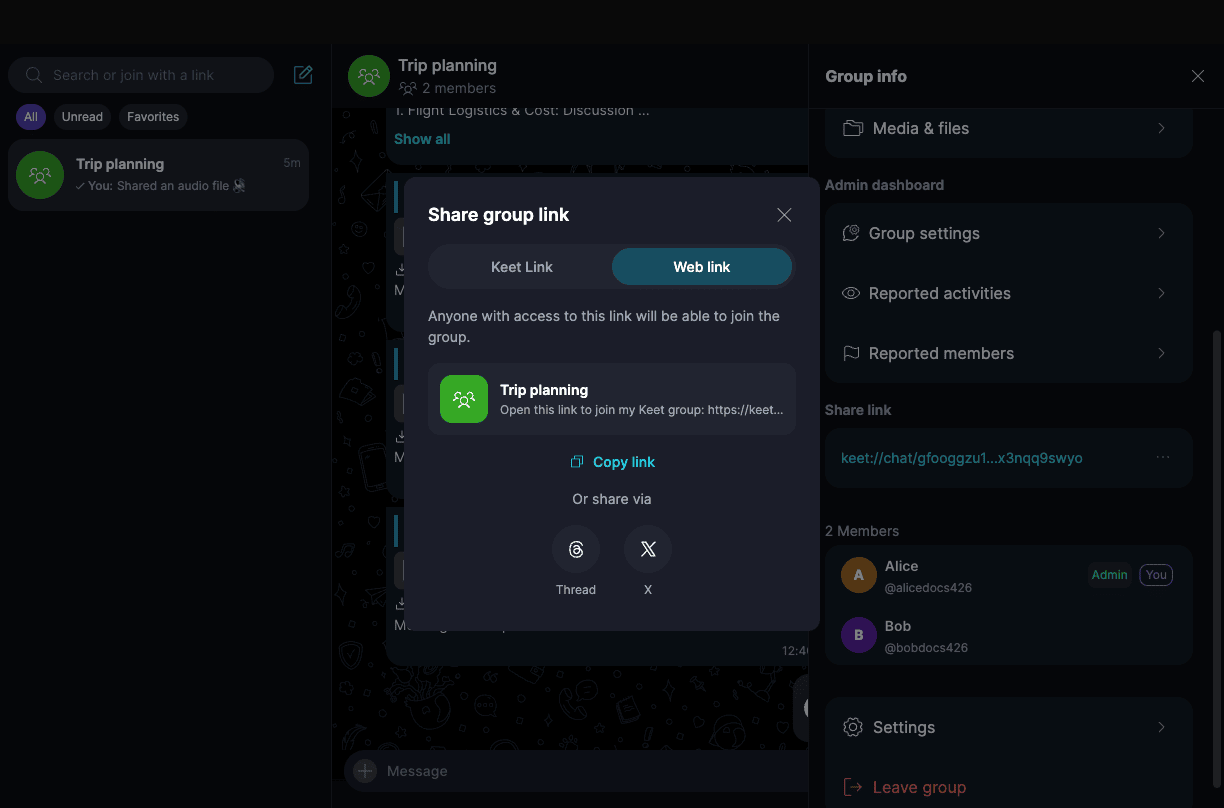
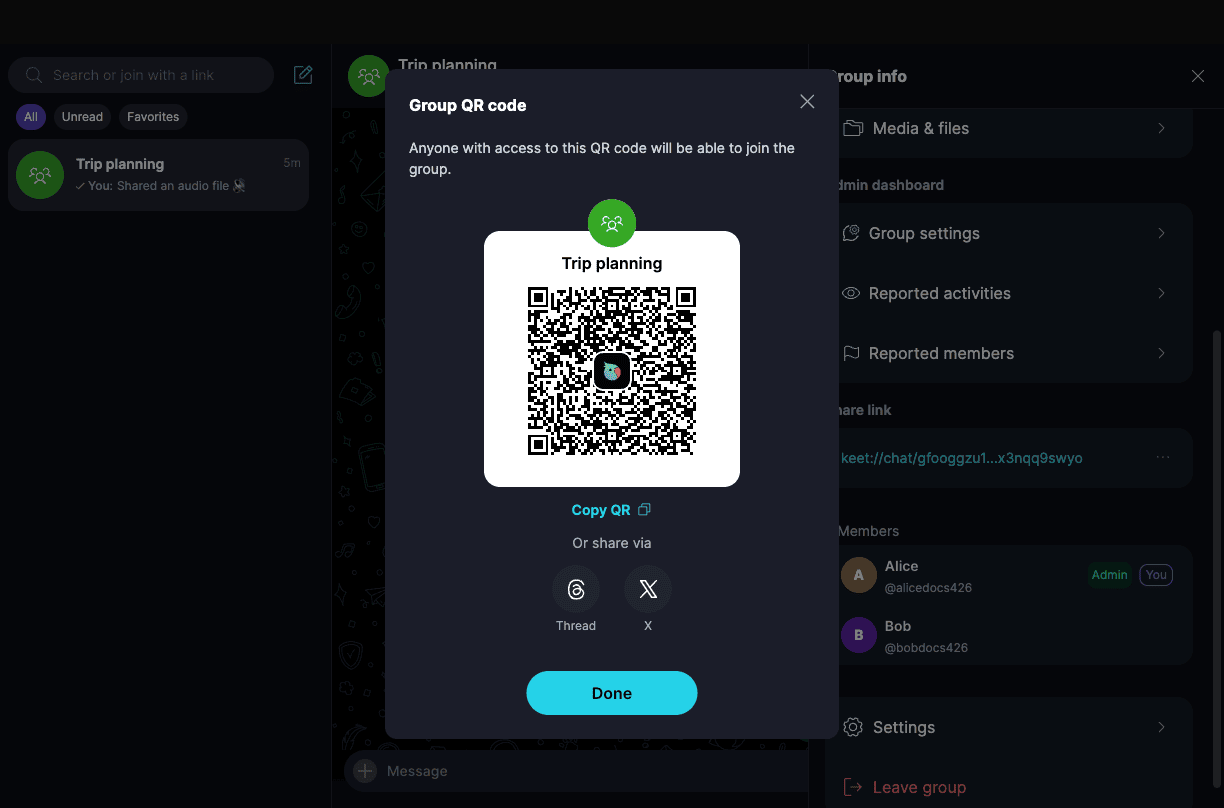
Tap the link to open 'Share Group Link', or tap the QR code icon next to it to show the group's QR code.
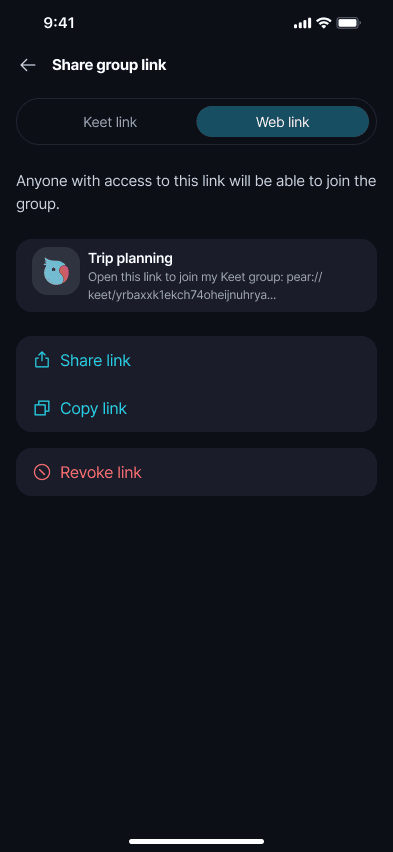
- 'Share link' opens your phone's share sheet.
- 'Copy link' copies the link.
- 'Revoke link' turns the link off. Only Admins and Moderators see it.
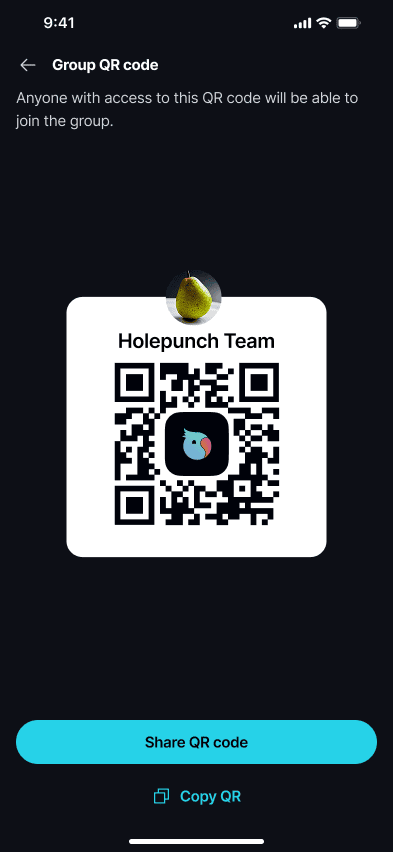
Keet link or web link?
- A Keet link starts with
keet://. The person you send it to pastes it into the 'Search or join with a link' field in Keet. - A web link opens in a web browser and takes the person into Keet, or helps them install it first. It's the easiest choice if you're not sure they have Keet. See Invite Links.
Both open the same group, on desktop and mobile. Keet confirms with a message such as 'Group invite link copied' when you copy one.
Who can share the link?
Admins and Moderators can always share it. Peers can share it too, as long as the group allows it. If an Admin has turned off group invites in 'Group settings', Peers see 'Disabled by admin' instead of the link. If no link has been created yet, Peers see 'No invite available'.
Revoke the invite link
Revoke the link if it ended up somewhere you don't want, or when you want to stop new people from joining. Only Admins and Moderators can do this.
-
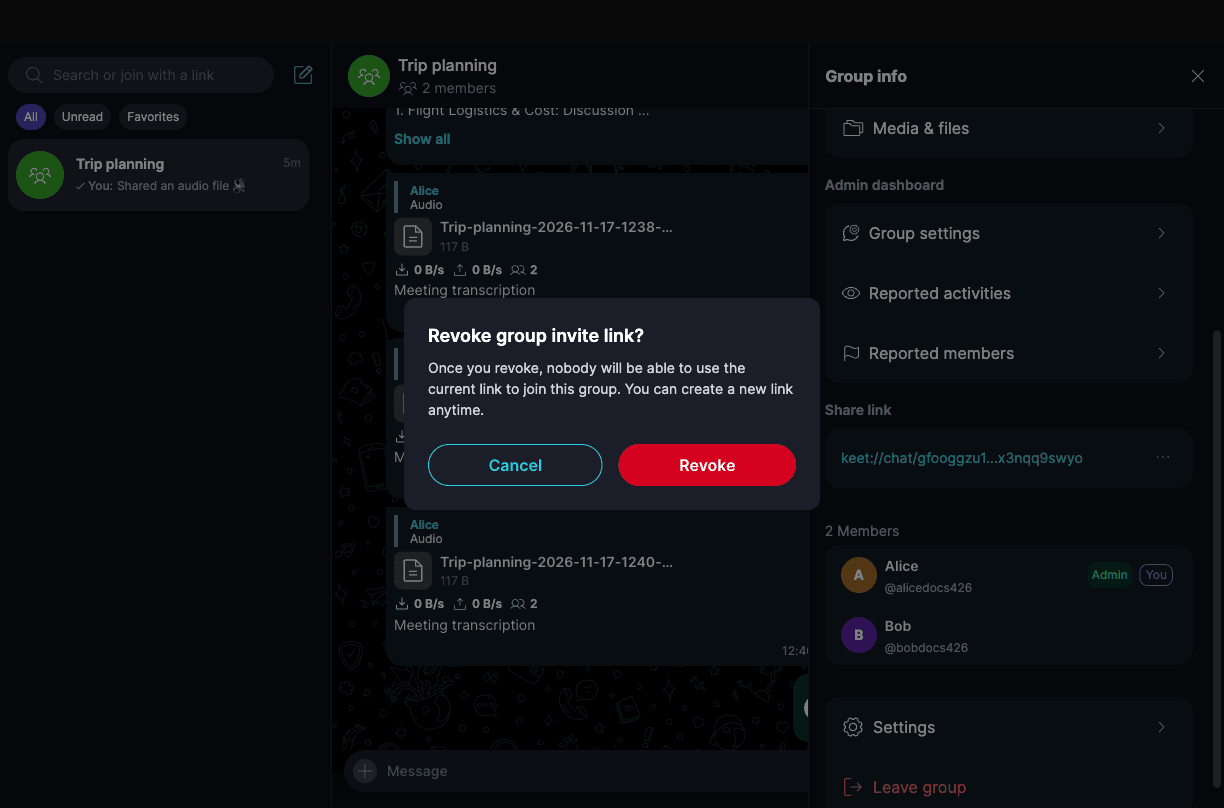
In 'Group info', click the three dots '[...]' next to the link and choose 'Revoke invite'.
-
Click 'Revoke' to confirm:
-
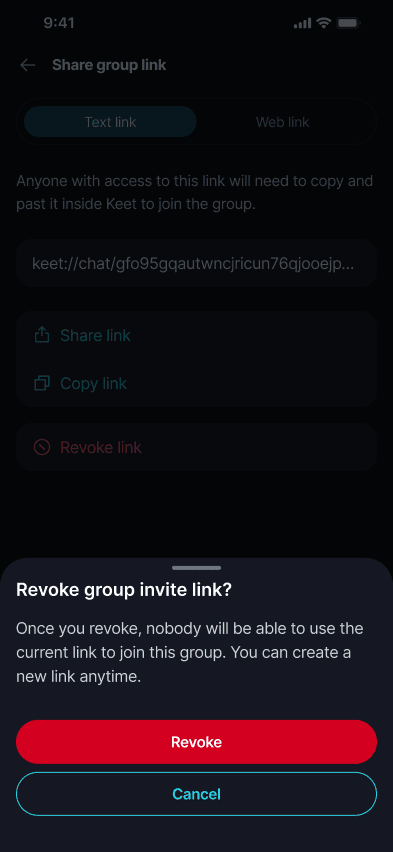
In 'Group info', tap the link, then tap 'Revoke link'.
-
Tap 'Revoke' to confirm:
Keet shows 'Group invite link revoked'. After that:
- Nobody can join with the old link, or with its QR code.
- Everyone already in the group stays in the group.
- The group has no invite link until an Admin or Moderator creates a new one with 'Create invite link'. The new link replaces the old one, and the old one stays revoked.
Cannot join the group?
- If the link was revoked, it won't let anyone in. Someone who opens it may stay on 'Waiting for someone to let you in'. Ask an Admin or Moderator of the group for the current link.
- Someone in the group has to be online to let a new member in. If you're waiting to join, keep Keet open and try again later.
- If the link still doesn't work, try the QR code instead, or ask for a new link.
If you are experiencing further issues, please submit a bug report to the 'Bug Bandits' group and our team will look into it.
What if my peer doesn't have Keet installed?
They don't need to install it first. Send them the web link or the QR code. It guides them to download Keet, and once they open the app, they're taken straight into the group — see Invite Links for the full flow.
What about groups created with older versions of Keet?
The single invite link needs Keet 4.26 or later. A group that hasn't moved to it yet keeps using the previous invite links, which expire after a set time. On desktop, 'Share link' in those groups creates a Peer invite link that's valid for 2 days.