 Keet Support
Video issues
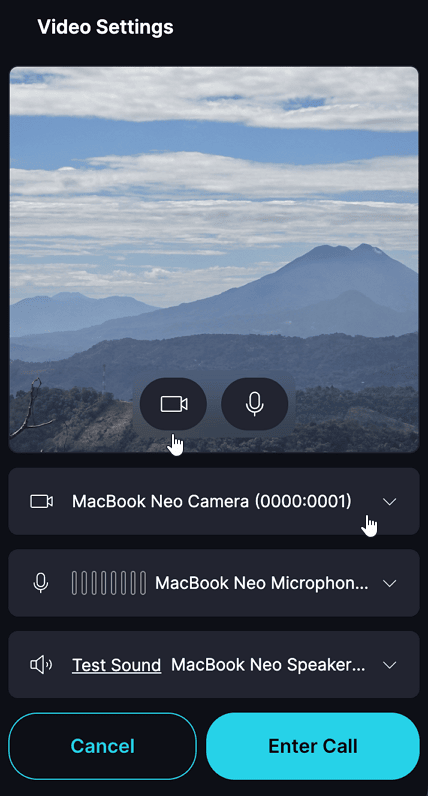
* Check that the camera is selected and enabled during a call:
I can't use the camera on Keet
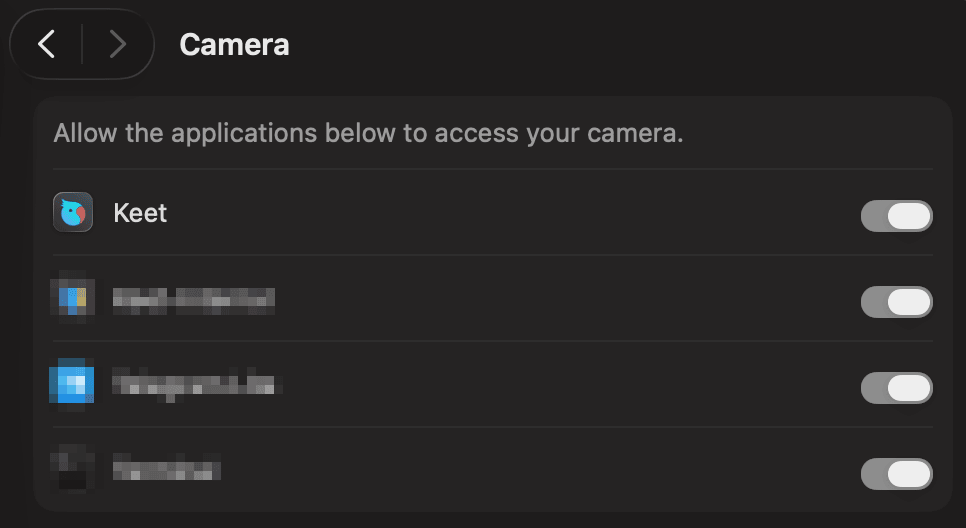
- Verify that you have granted Keet the necessary camera permissions.
- Desktop: 'Settings' / 'Privacy & Security' / 'Camera' / 'Keet'
- Mobile: 'Settings' / 'Apps' / 'Keet' / 'Permissions'
- Test the camera in other apps to ensure it's functioning properly.
Video quality is low
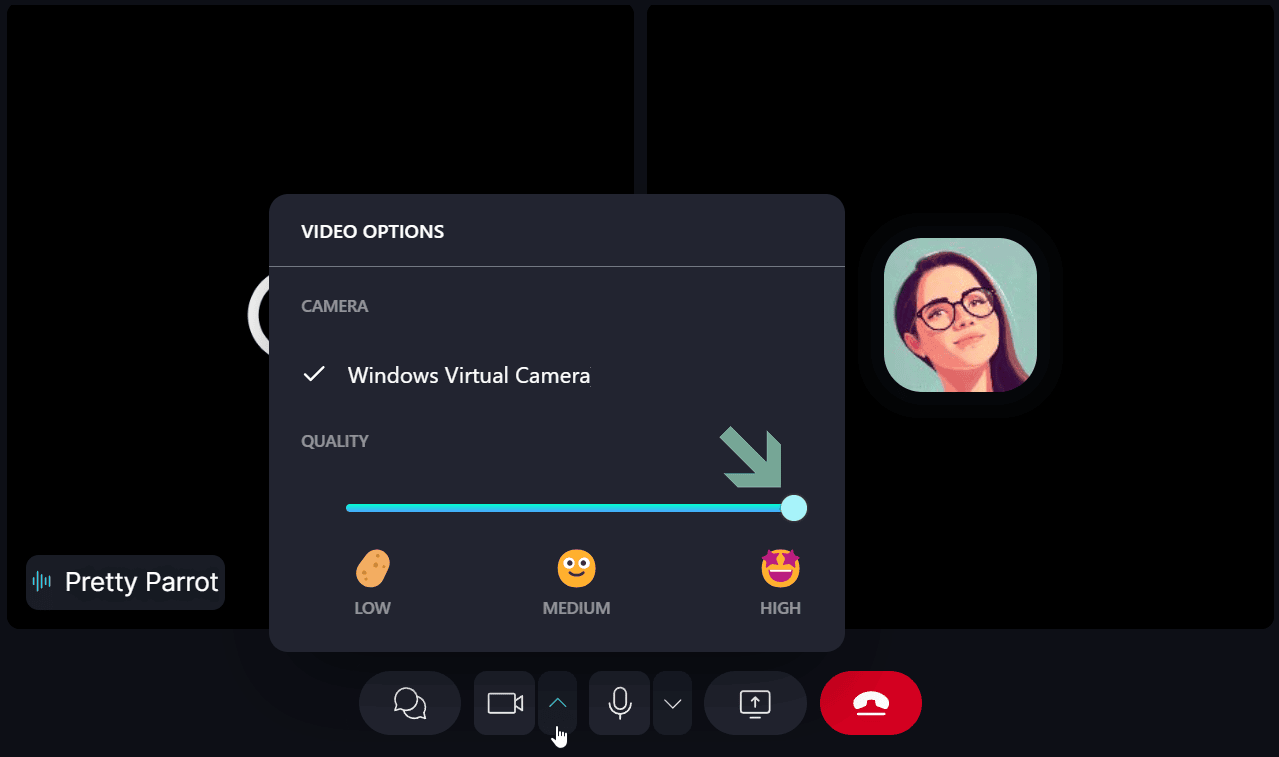
- Adjust video quality settings during the call on Desktop. Click on the dropdown button next to the camera icon to change video quality.
- Ensure that you and your contact have a stable internet connection.
- If Keet turned off your camera with the message 'Your device is under heavy load', or hid someone's video with 'Video is off because your device is under heavy load', see What if my device is struggling?
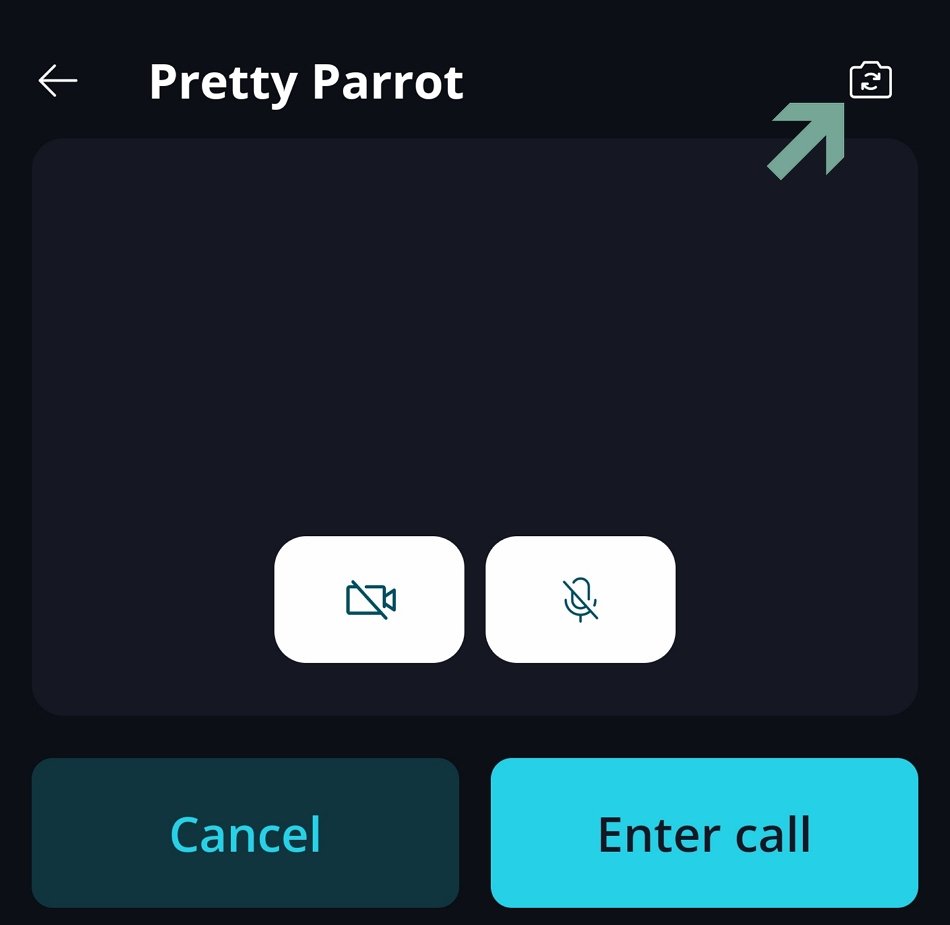
I want to use my rear camera during a call
To switch cameras when calling from your mobile device, tap the 'Flip camera' [📸] icon
A video someone shared won't play
Some videos are recorded with a codec (commonly H.265 / HEVC) that isn't supported on every device or operating system, so the video may play fine for the sender but not for you.
Keet can't convert a video on the receiving end. Ask the sender to re-share it using 'Convert video' - see Convert Incompatible Videos.
If you are experiencing further issues, please submit a bug report to the 'Bug Bandits' group and our team will look into it.