 Keet Support
Send GIFs 😹
Search for GIFs from KLIPY right in the chat, send them with one click or tap, add a caption, and keep your favourites close at hand.
Where do I find GIFs?
GIFs live next to emojis. Open a chat, select the emoji button in the message box, and switch to the 'GIFs' tab.
GIF search is powered by KLIPY. Type in the 'Search KLIPY' field to find a GIF, or browse by the categories under the search field.
Click the emoji button (😊) next to the message box, then click 'GIFs':
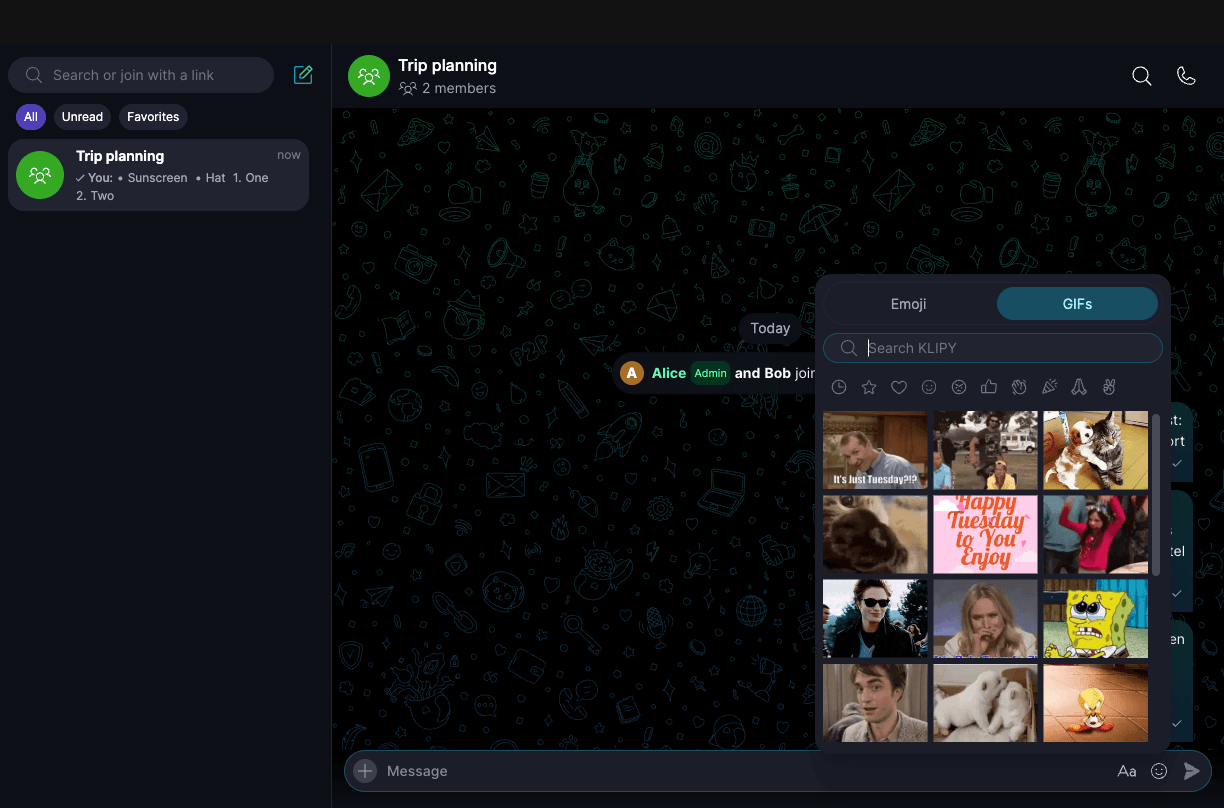
Tap the emoji button (😊) in the message box, then tap 'GIFs' at the bottom of the panel.
GIFs need Keet 4.26 or later. Everyone in the chat should update to see the GIFs you send.
How do I send a GIF?
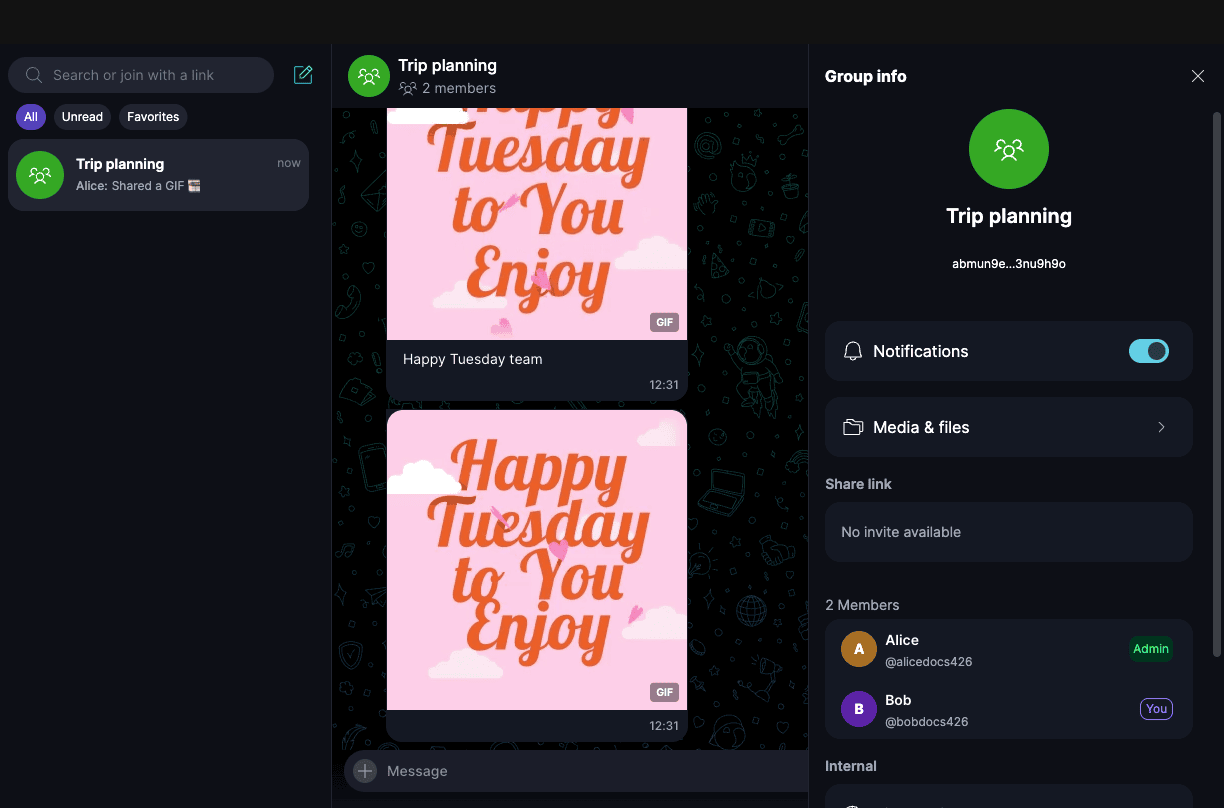
Click or tap a GIF. Keet sends it to the chat straight away, with no extra step, and closes the picker.
Sent GIFs play in the chat and have a small 'GIF' label. In the chat list, they show as 'Shared a GIF'.
How do I preview a GIF or add a caption?
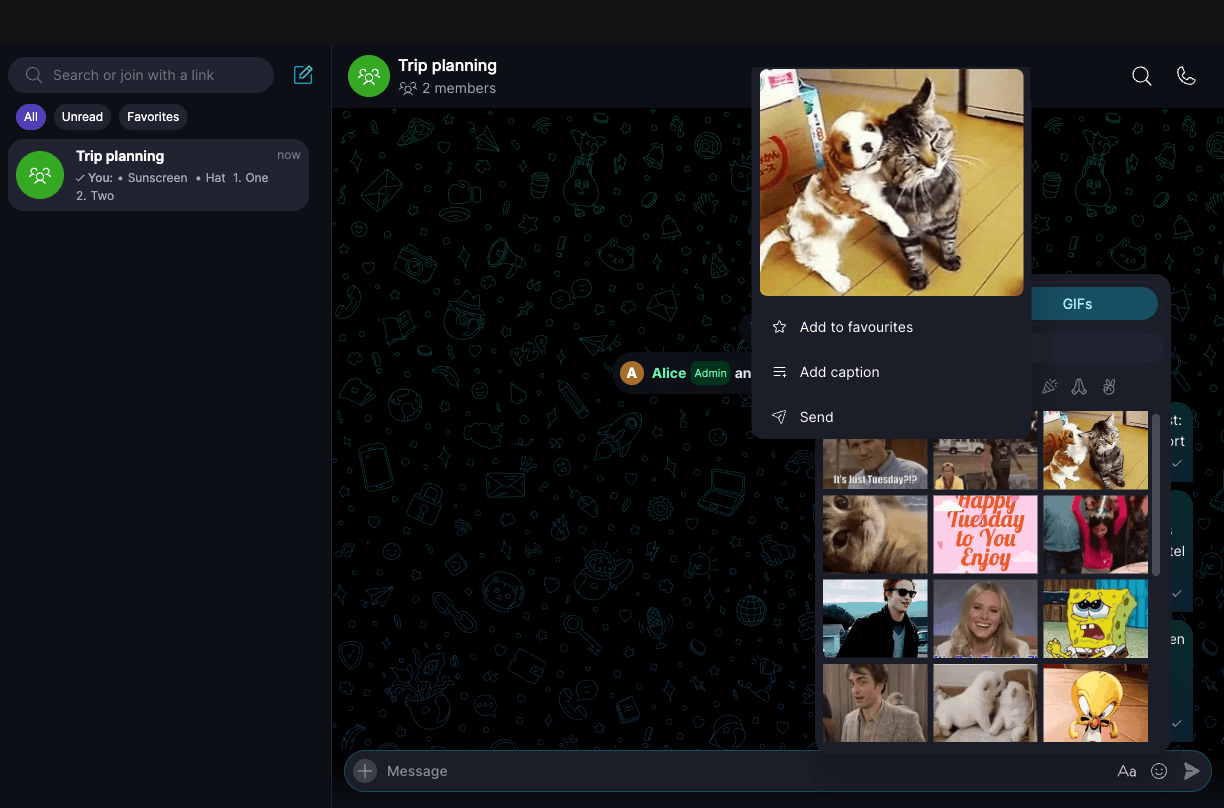
To look at a GIF more closely before you send it, right-click it on desktop or long-press it on mobile. Keet shows a bigger preview with these options:
- 'Send' sends the GIF.
- 'Add caption' puts the GIF in the message box so you can write a caption, then send it like a normal message.
- 'Add to favourites' saves the GIF to your favourites. If it's already there, you see 'Remove from favourites' instead.
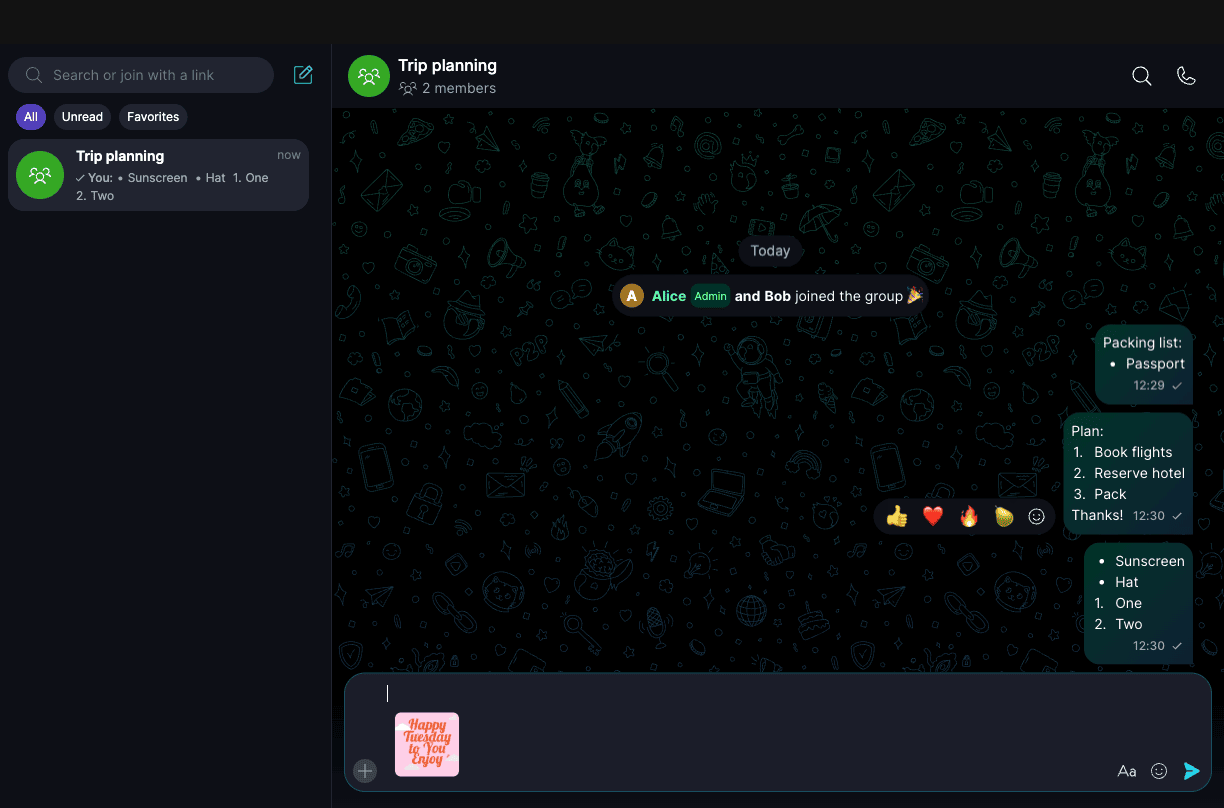
To close the preview without sending anything, click outside it or press Esc. Whatever you already typed in the message box stays there.
- 'Send with caption' puts the GIF in the message box so you can write a caption, then send it like a normal message.
- 'Add to favourites' saves the GIF to your favourites. If it's already there, you see 'Remove from favourites' instead.
- In 'Recent' and 'Favourites', 'Delete' removes the GIF from that list.
To send the GIF without a caption, close the preview and tap the GIF. To close the preview without sending anything, tap outside it. Whatever you already typed in the message box stays there.
Where are my favourite and recent GIFs?
The first two icons under the search field are your own lists:
- Recent (🕒) shows the GIFs you've sent.
- Favourites (☆) shows the GIFs you saved with 'Add to favourites'. You can save up to 100.
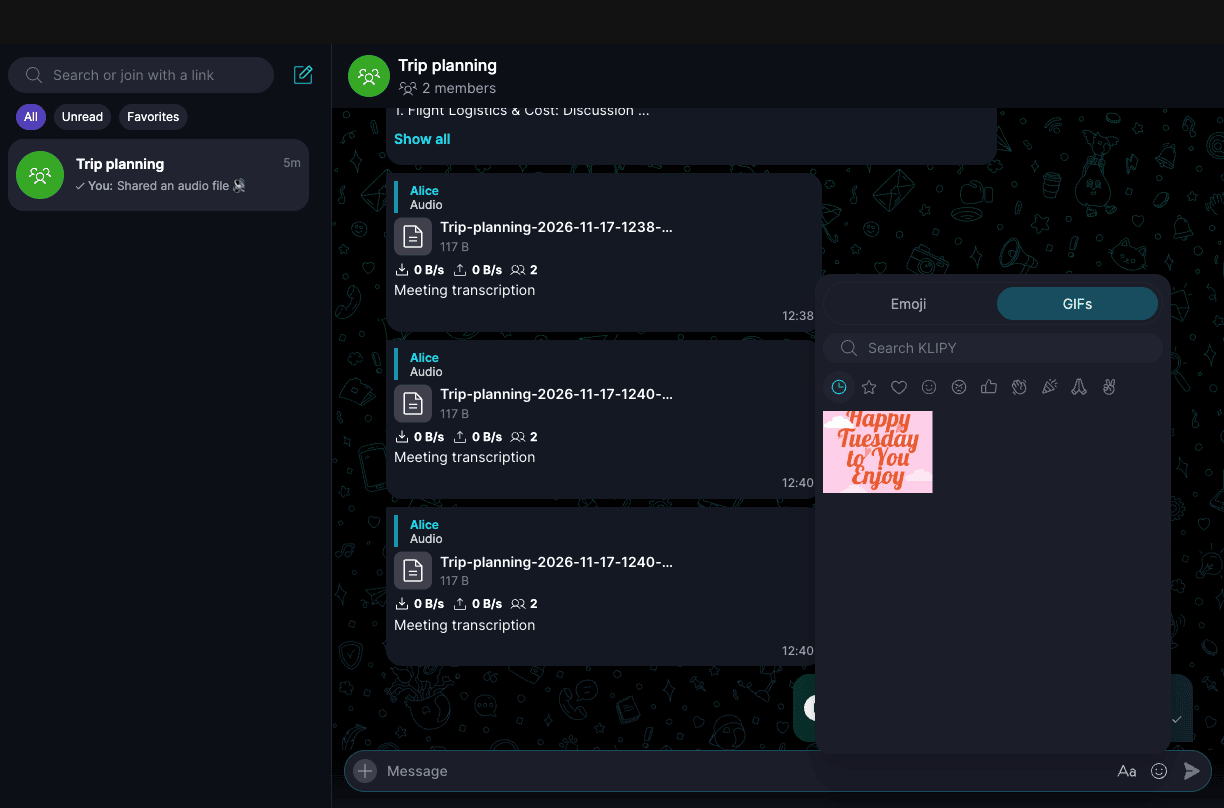
Both lists are saved on your device and are still there the next time you open the picker. They don't sync to your other linked devices.
Is GIF search private?
GIF search uses KLIPY's service, so the words you search for and the GIFs you browse are sent to KLIPY to show you results. The GIFs you send travel to the chat peer-to-peer, like any other file in Keet.
What if GIFs don't load?
If you see 'Can't reach KLIPY', check your internet connection and select 'Try again'. Your recent GIFs still work while KLIPY is unreachable.
If a GIF won't send, wait a moment and try again. GIFs can't be sent in groups where an Admin has turned off file sharing.