 Keet Support
Transcribe Audio Messages 🎧
Turn an audio message or recording that's already in a chat into a text transcript and a short summary, without listening to the whole thing.
What does Transcribe do?
Transcribe turns an audio message that's already in a chat into text. It works on voice messages, call recordings, and audio files someone shared. Keet then posts the result in the same chat as a reply to the audio:
- a transcript of everything that was said, as a downloadable
.txtfile - an AI-generated summary you can read in the chat, for recordings longer than 5 minutes
🔒 Keet transcribes and summarizes the audio on your own device. The audio isn't uploaded to a cloud service. The first time you use it, Keet downloads the models it needs, which can take a few minutes.
The result is posted in the chat, so everyone in that chat can see the transcript and summary, not just you.
How do I transcribe an audio message?
-
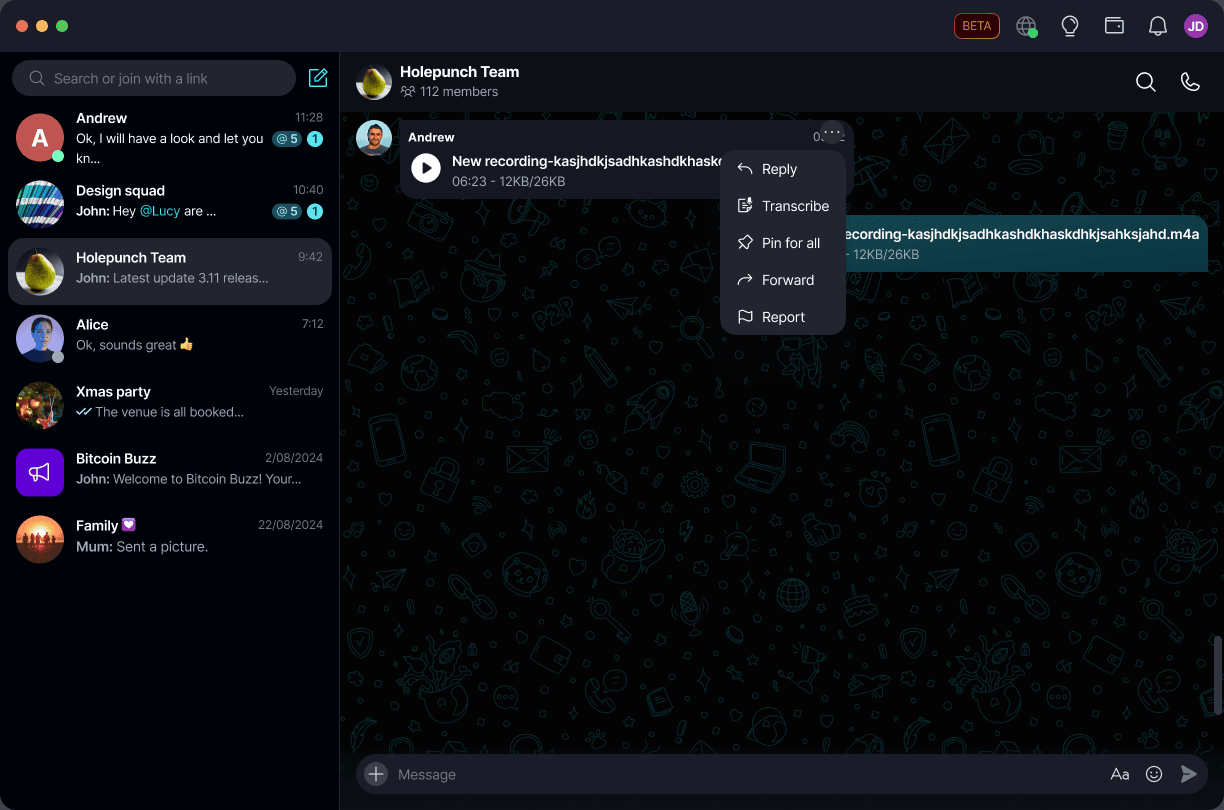
Hover over the audio message, click the three dots '[...]', and select 'Transcribe'. You can also right-click the message:
-
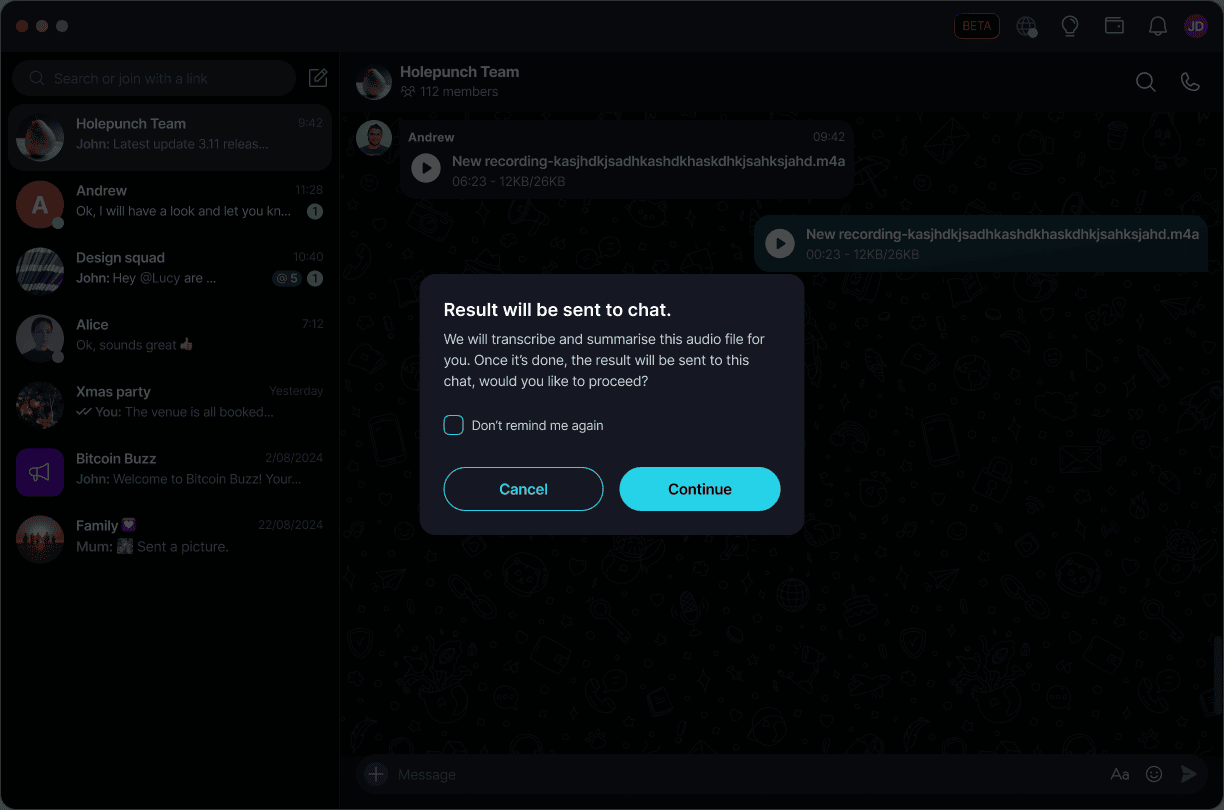
Keet tells you that 'Result will be sent to the chat.' Select 'Continue' to start, or 'Cancel' to close the message without transcribing anything:
-
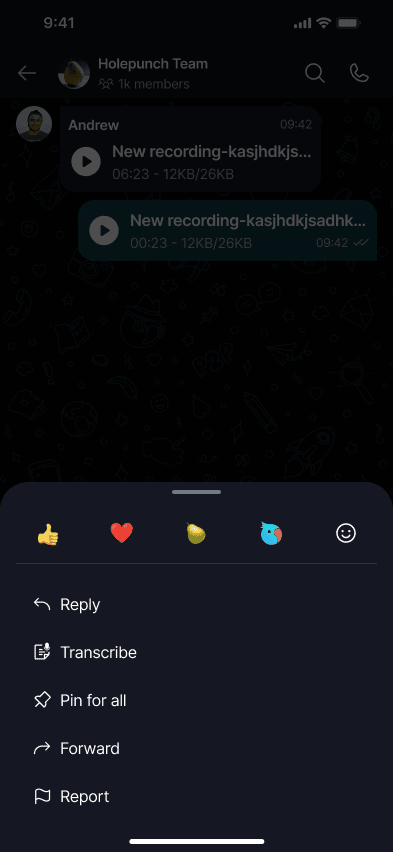
Long-press the audio message and tap 'Transcribe':
-
Keet tells you that 'Result will be sent to chat.' Tap 'Continue' to start, or 'Cancel' to close the message without transcribing anything:
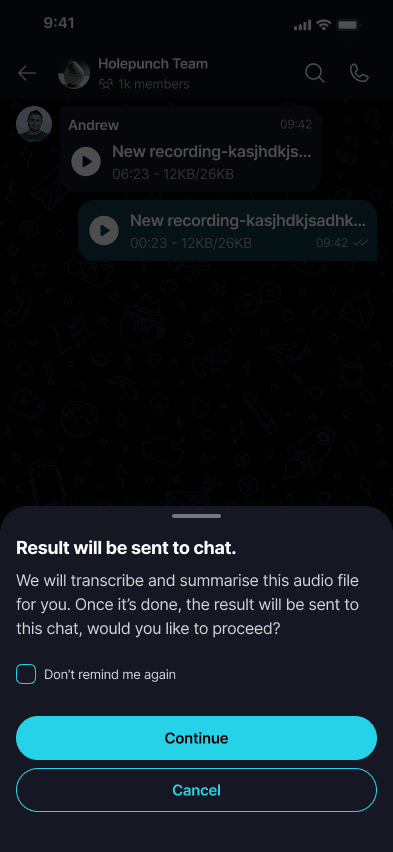
If you don't want to see this message every time, tick 'Don't remind me again' before you continue. Keet then starts transcribing right away the next time you select 'Transcribe' on that device.
What happens while Keet is working on it?
Under the audio message, Keet shows what it's doing:
- 'Downloading', while it downloads the transcription or summary model (desktop shows the progress as a percentage)
- 'Transcribing', while it turns the speech into text
- 'Summarizing', while it writes the summary
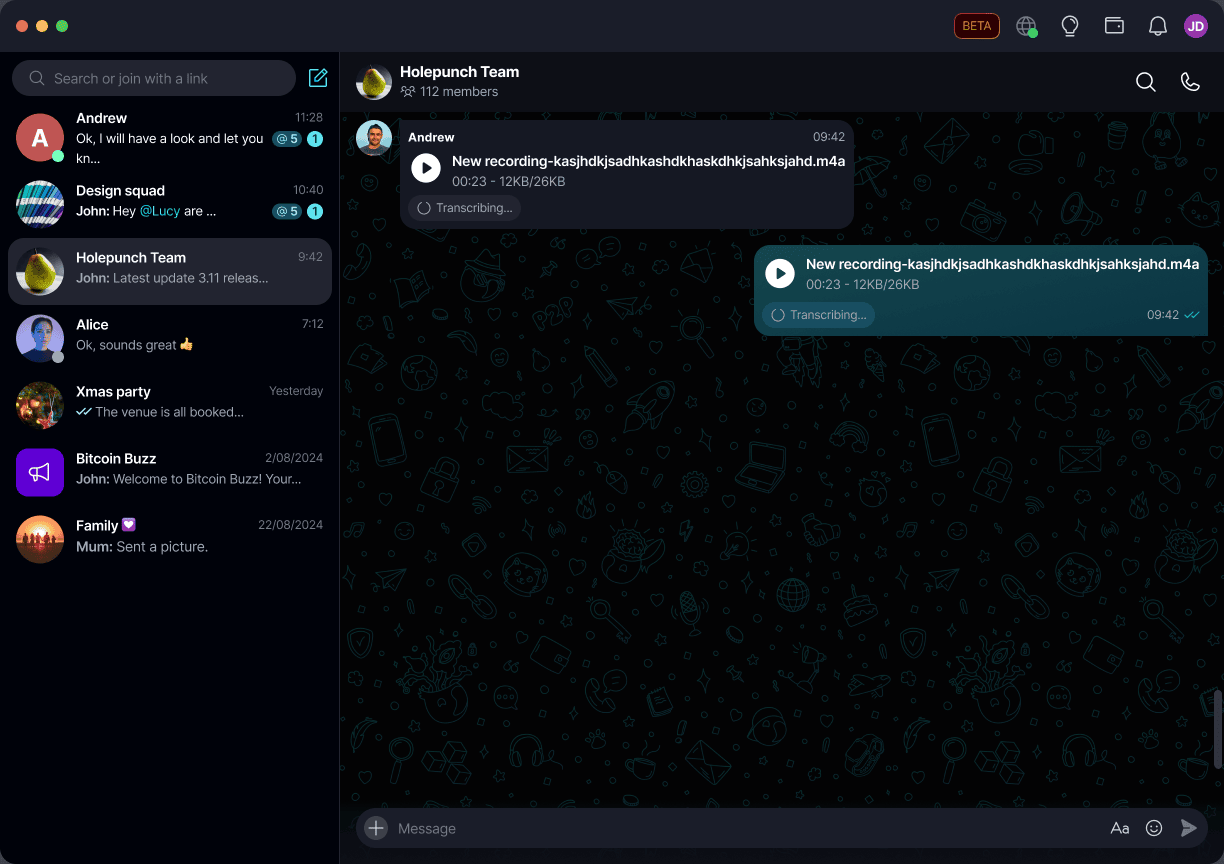
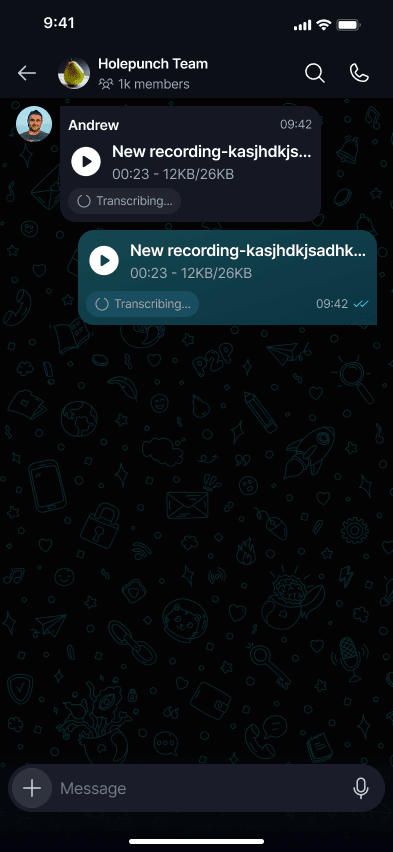
Keet transcribes one recording at a time. Until it finishes, 'Transcribe' is greyed out on every audio message and shows that a transcription is already in progress:
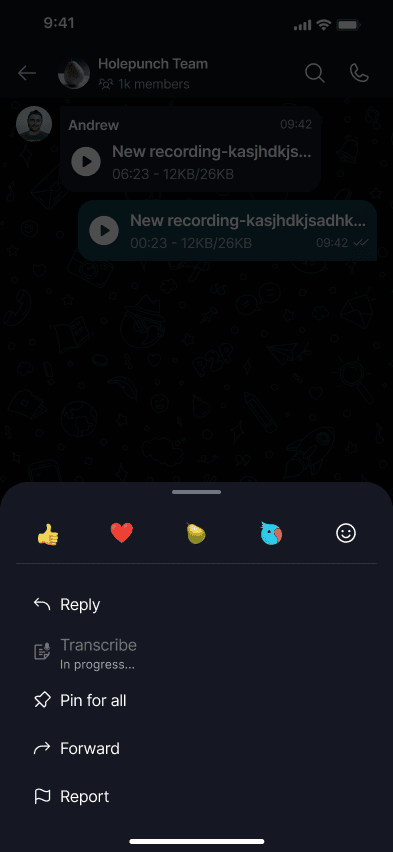
You can keep chatting while Keet works.
Where do I find the result?
When Keet is done, it sends a new message to the same chat. The message replies to the original audio, so you can see which recording it belongs to. It contains:
- the transcript as a
.txtfile that you can open or save, like any other shared file - the summary, shown right in the message
If the summary is long, select 'Show all' to read the rest.
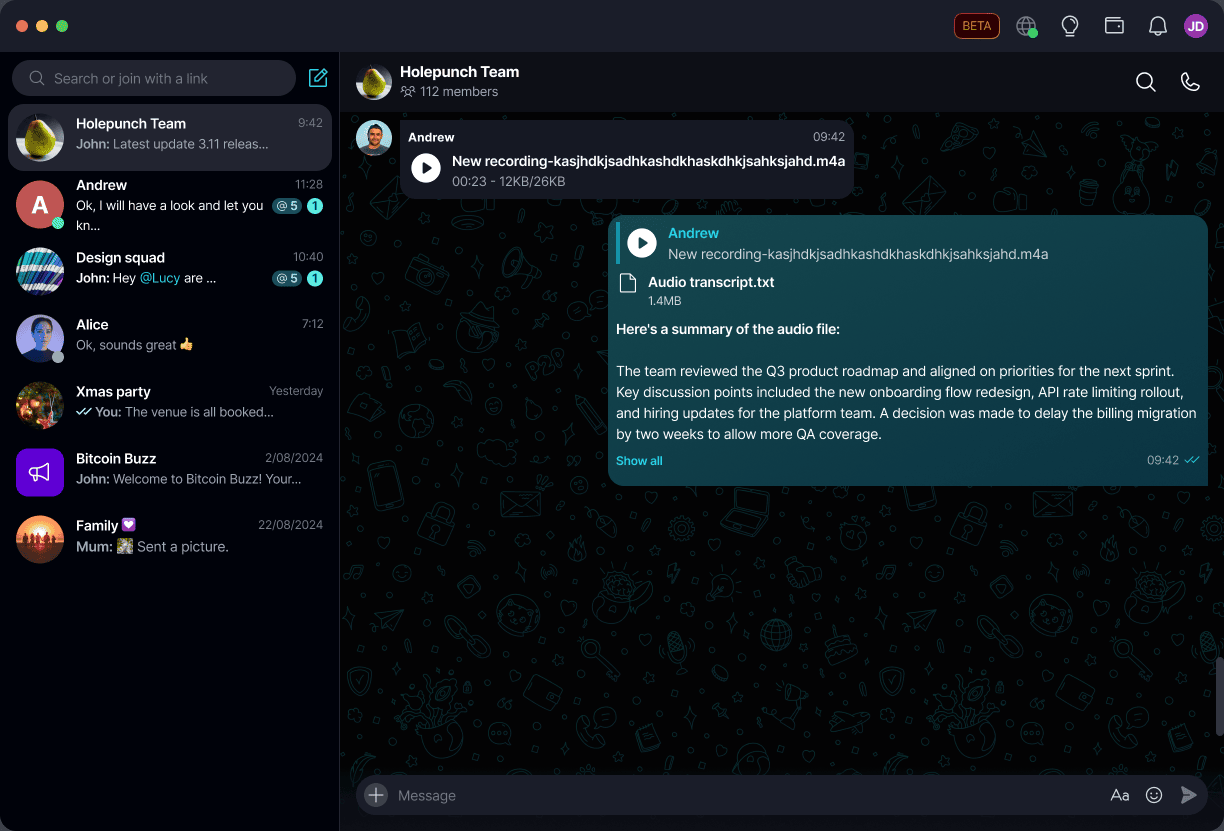
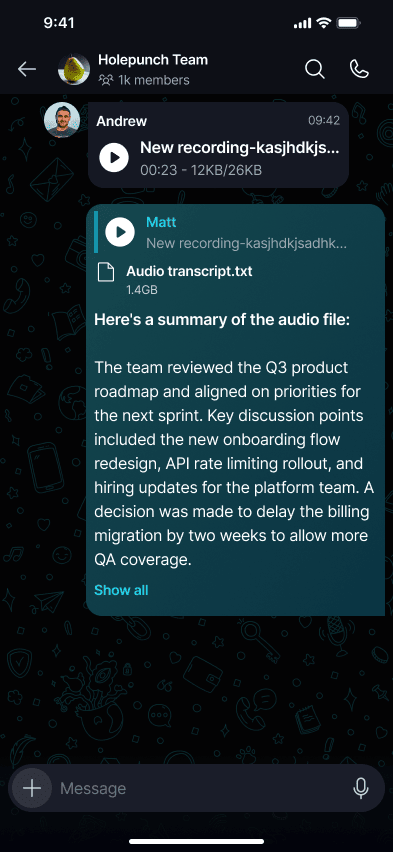
The summary is written by AI. It can get names, numbers, or places wrong, so check anything important against the transcript or the recording.
Does it work on any recording?
- Under 5 minutes: Keet transcribes the audio but doesn't write a summary. You get the transcript file only.
- 5 to 90 minutes: you get both the transcript and the summary.
- Over 90 minutes: Keet shows 'Couldn't summarize. This audio is too long' and doesn't write a summary.
On desktop, Transcribe is available on computers that support local transcription. It isn't available on Intel-based Macs.
What if transcription fails?
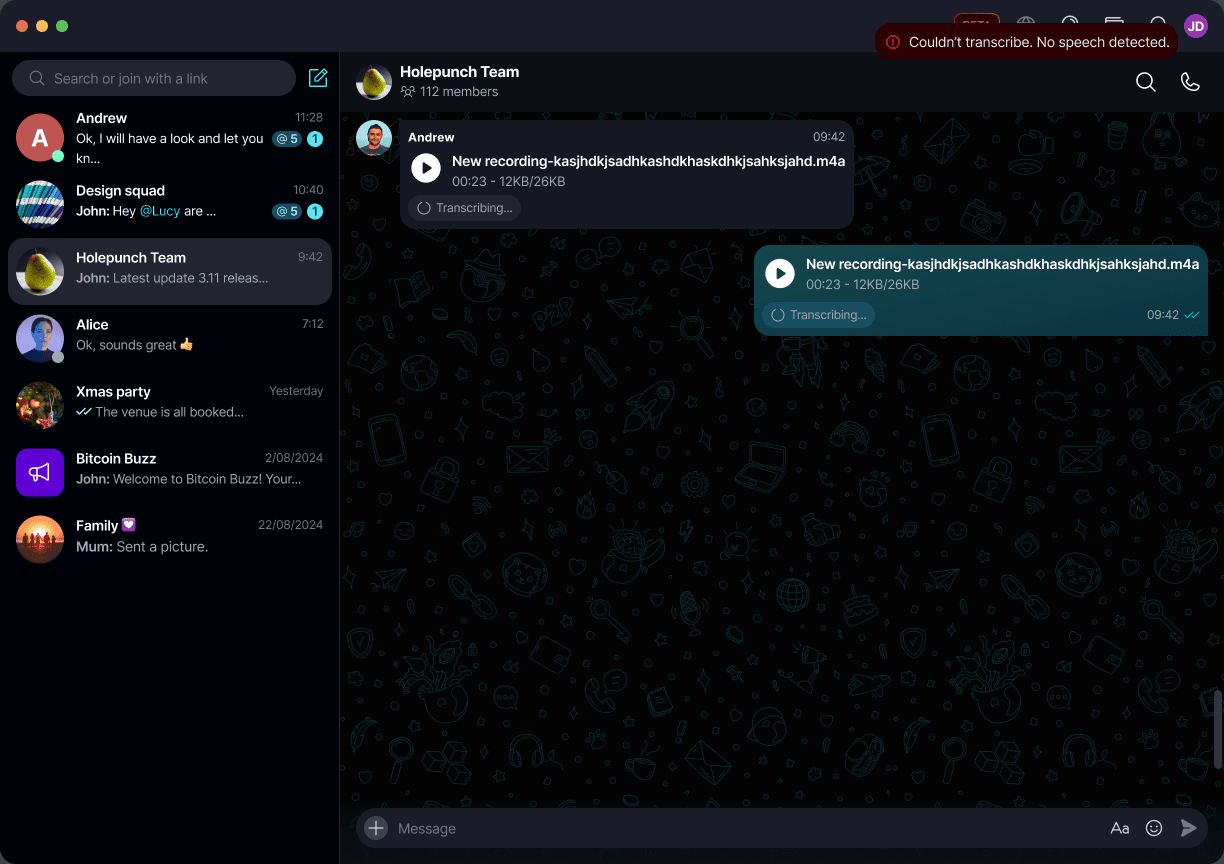
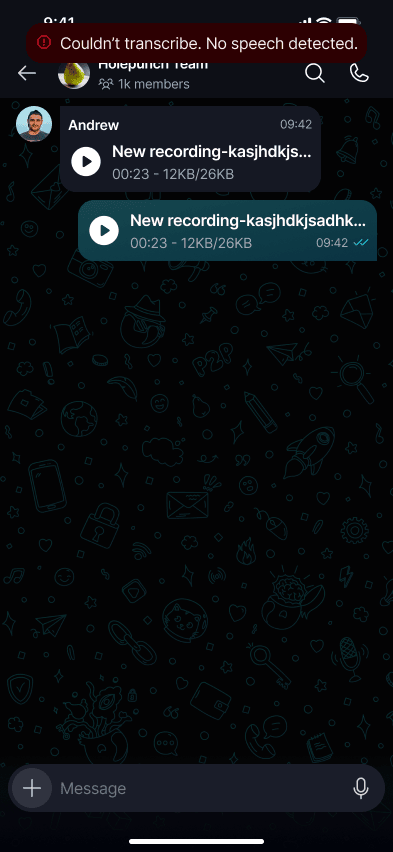
If Keet can't finish, it shows an error message and the audio message goes back to normal, so you can try again.
-
'Couldn't transcribe. No speech was detected' means Keet couldn't hear anyone talking in the recording.
-
'Transcription failed. There was an error while downloading the model' or 'Summarization failed. There was an error while downloading the model' usually means your connection dropped during the first download. Check your connection and try again.
-
For any other error, try again later. If it keeps failing, submit a report.
Your audio message is never changed or removed, whatever happens.
Want a transcript of a call while it's happening? See Call Transcripts & Summaries.